Setup your Remote ID Pro
Step 1: Go to AirPlate website
Start by adding your Remote ID Pro to your AirPlate account. We provide 3 options to access the site:
- QR-code scanning - Recommended
- Navigating to the page on the AirPlate website
- Going to the url
Top tip: If you scan the QR-Code, the serial number of your Remote ID Pro will be automatically associated with your account once you sign up or log in.
QR-code - Recommended
Scan the QR-code with your mobile phone and will go directly to the addAirPlate. The QR-code automate the association process and the code is unique for every Remote ID Pro. You will find the QR-code once you open the box, like the following:
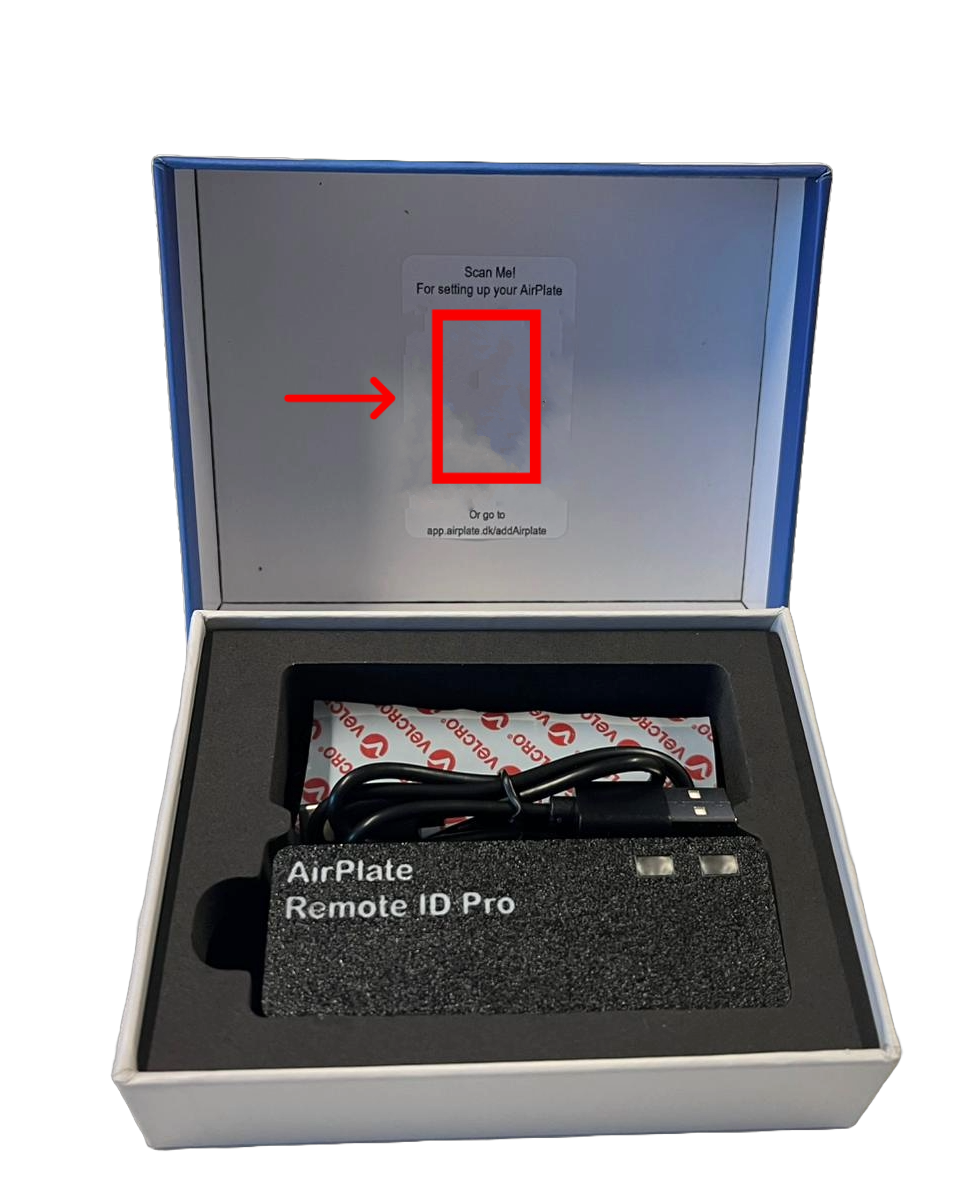
NB: The QR code can only be used one time. Once the automatic association process has been completed the QR-code cannot be used again.
Navigating to the page on the AirPlate website
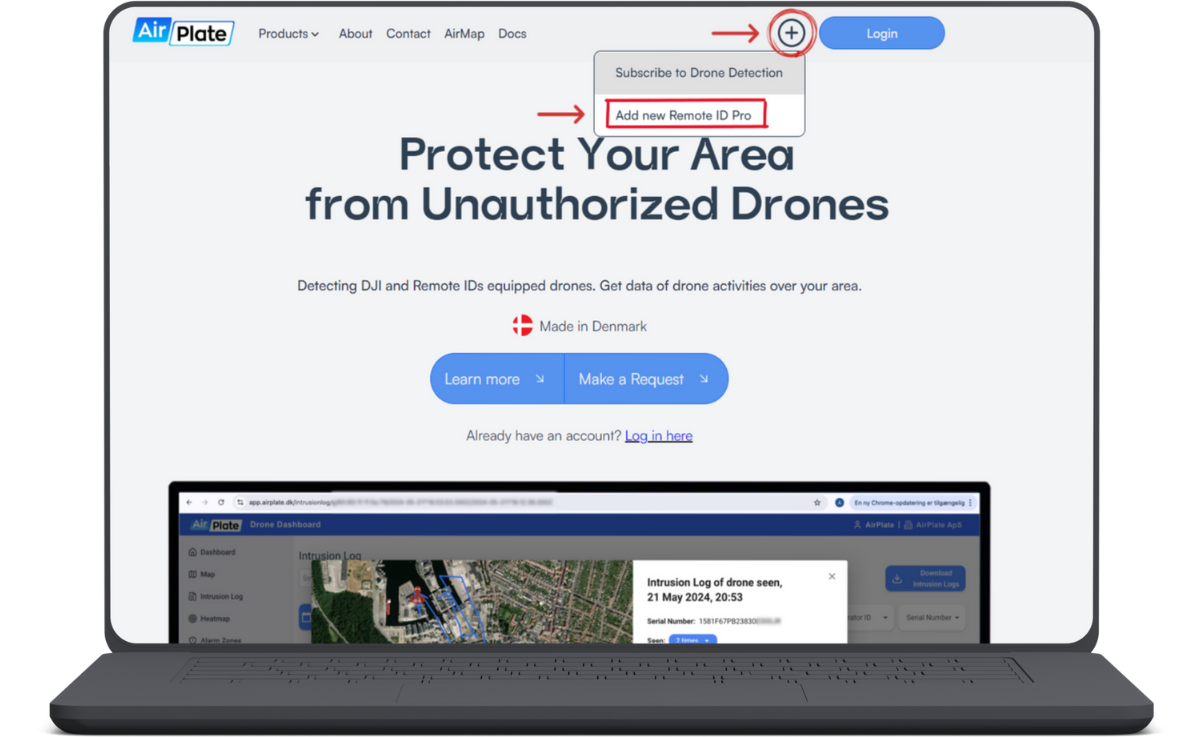
By going on AirPlate’s website https://airplate.dk/ you can find the option to Add a device as shown in the screenshot below:
Go directly to the URL
Or if you don’t use the QR-code please go to the URL: http://app.airplate.dk/addAirplate
Step 2 - Login or Signup
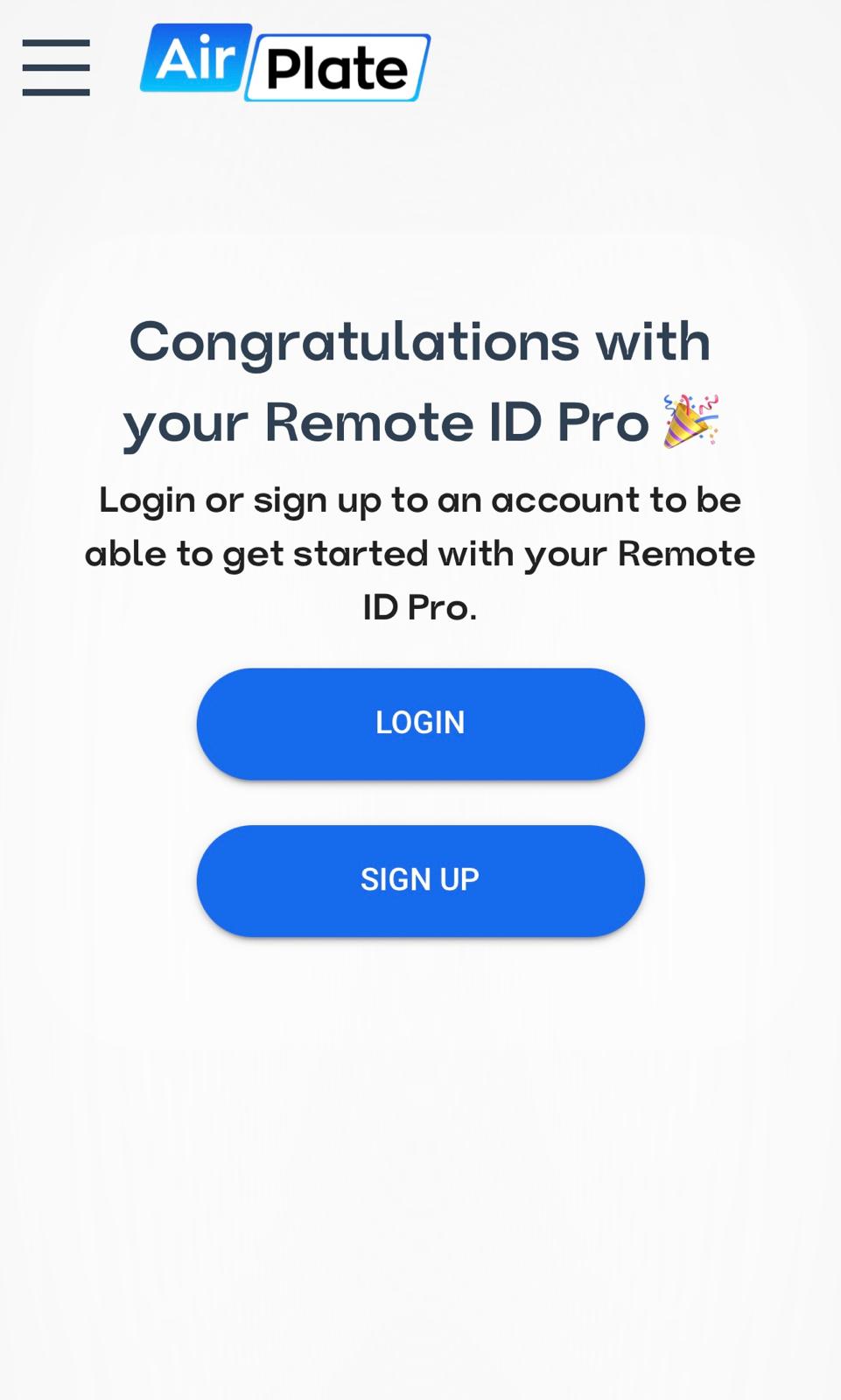
Once you have reached the Add Remote ID Pro site, you have the option to Login or Sign up as shown in the screenshot below. If you already login and want to add the Remote ID Pro to your current account press Login otherwise press Sign Up.
Login
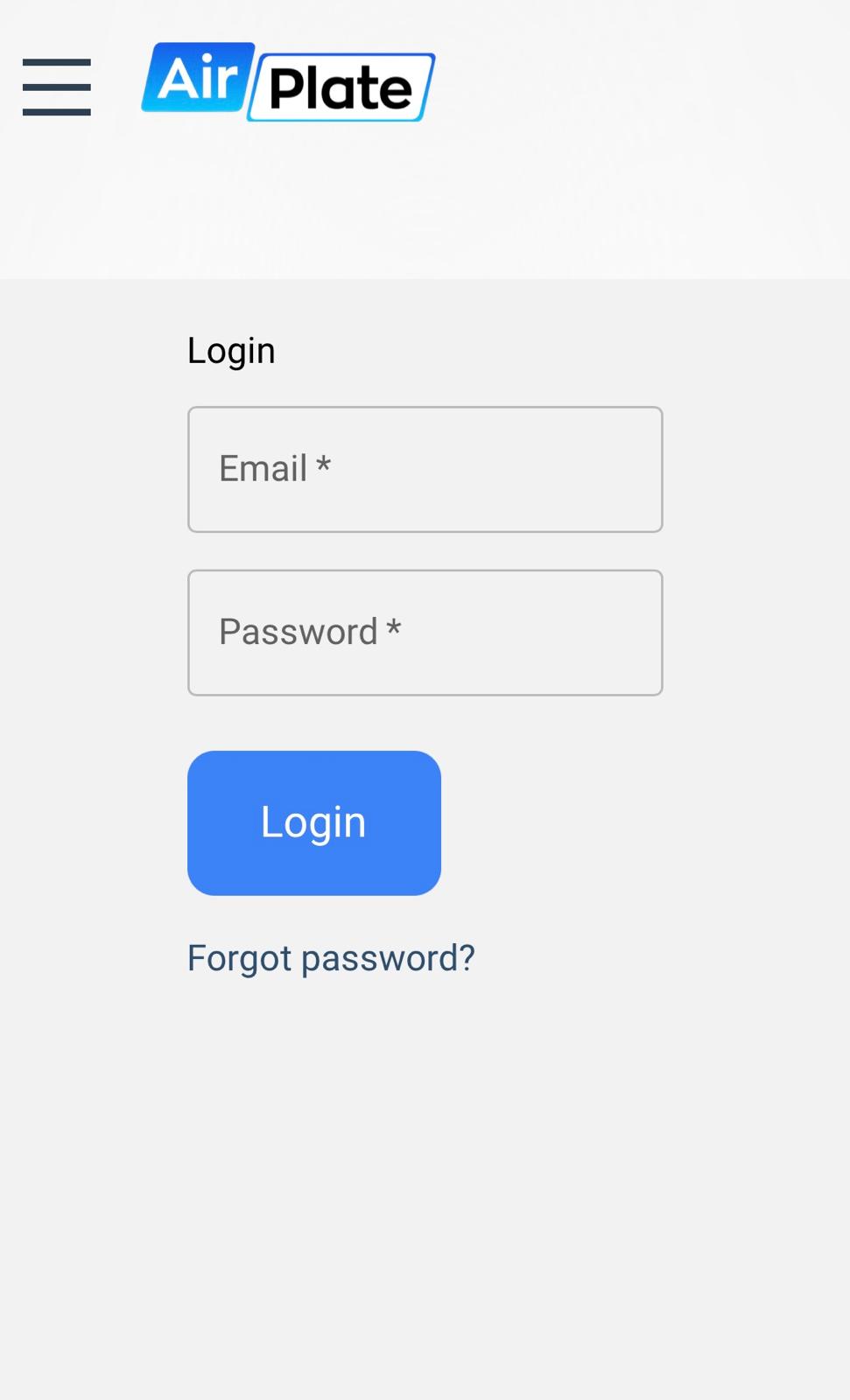
If you already have an account, just input your information and logon.
Using QR-code
If you use the QR-Code, your Remote ID Pro is successfully added to your account, once you have logged in.
Sign up
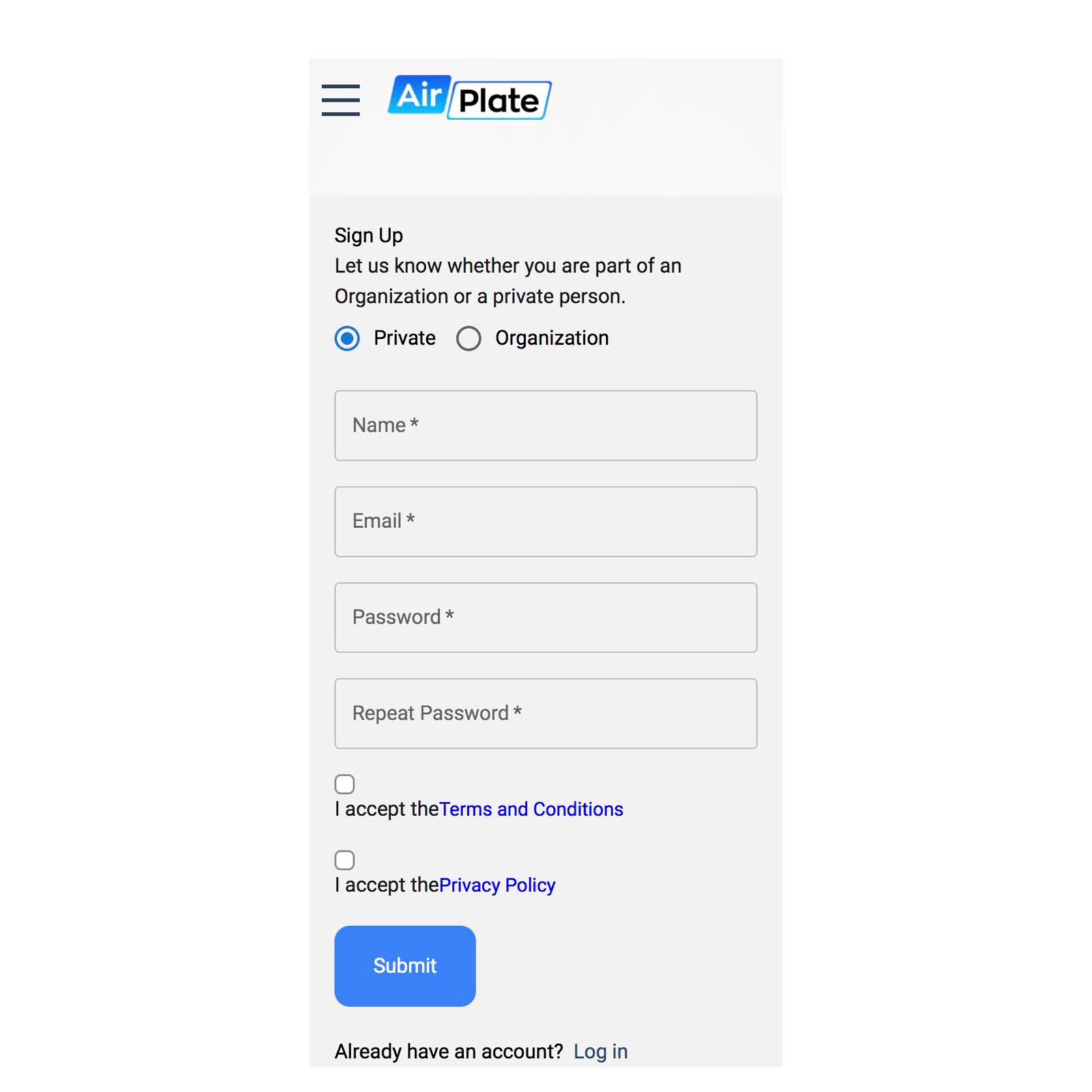
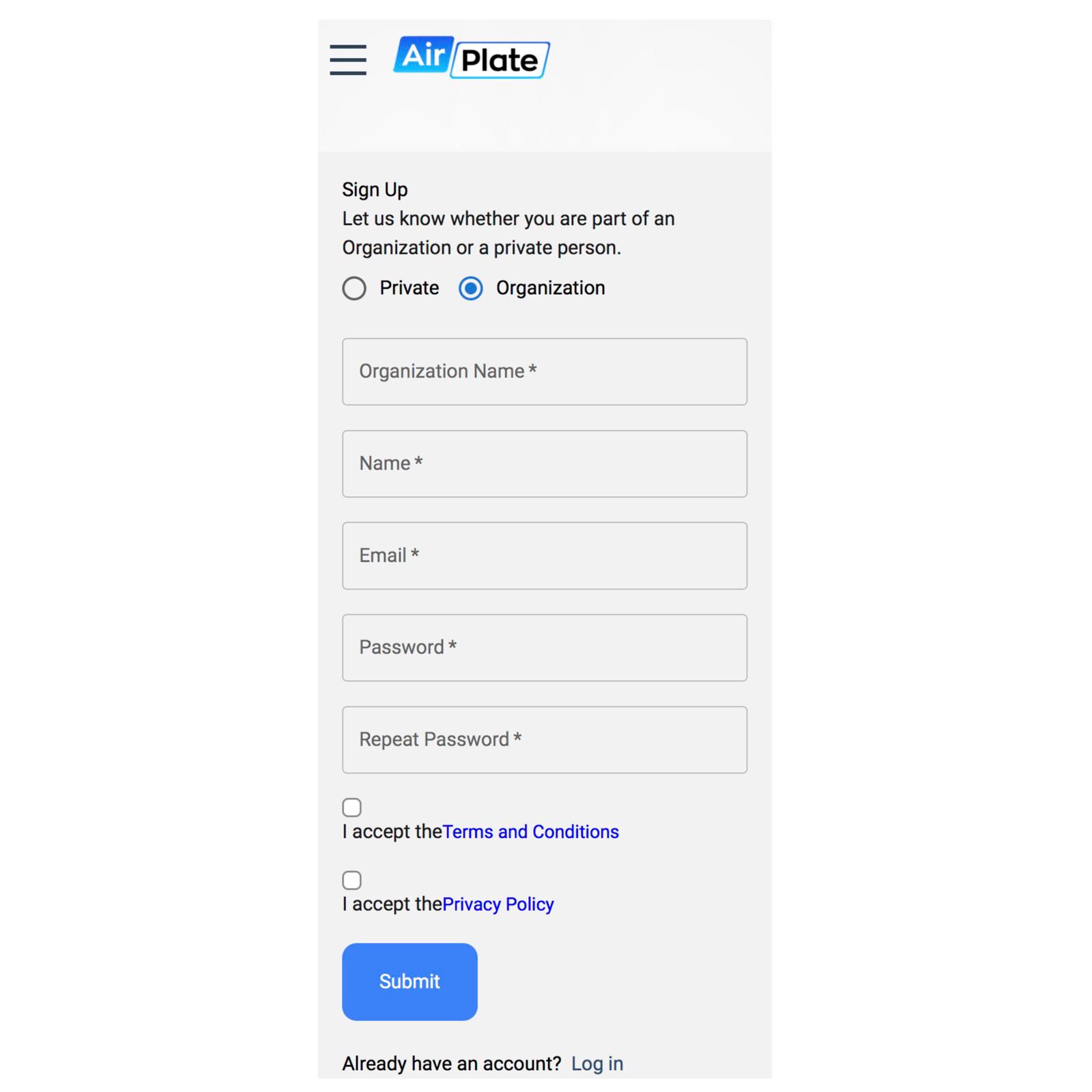
In this page you will be able to sign up, choose whether you are signing up as a private person or as a representative of an organisation.
Add Operator ID
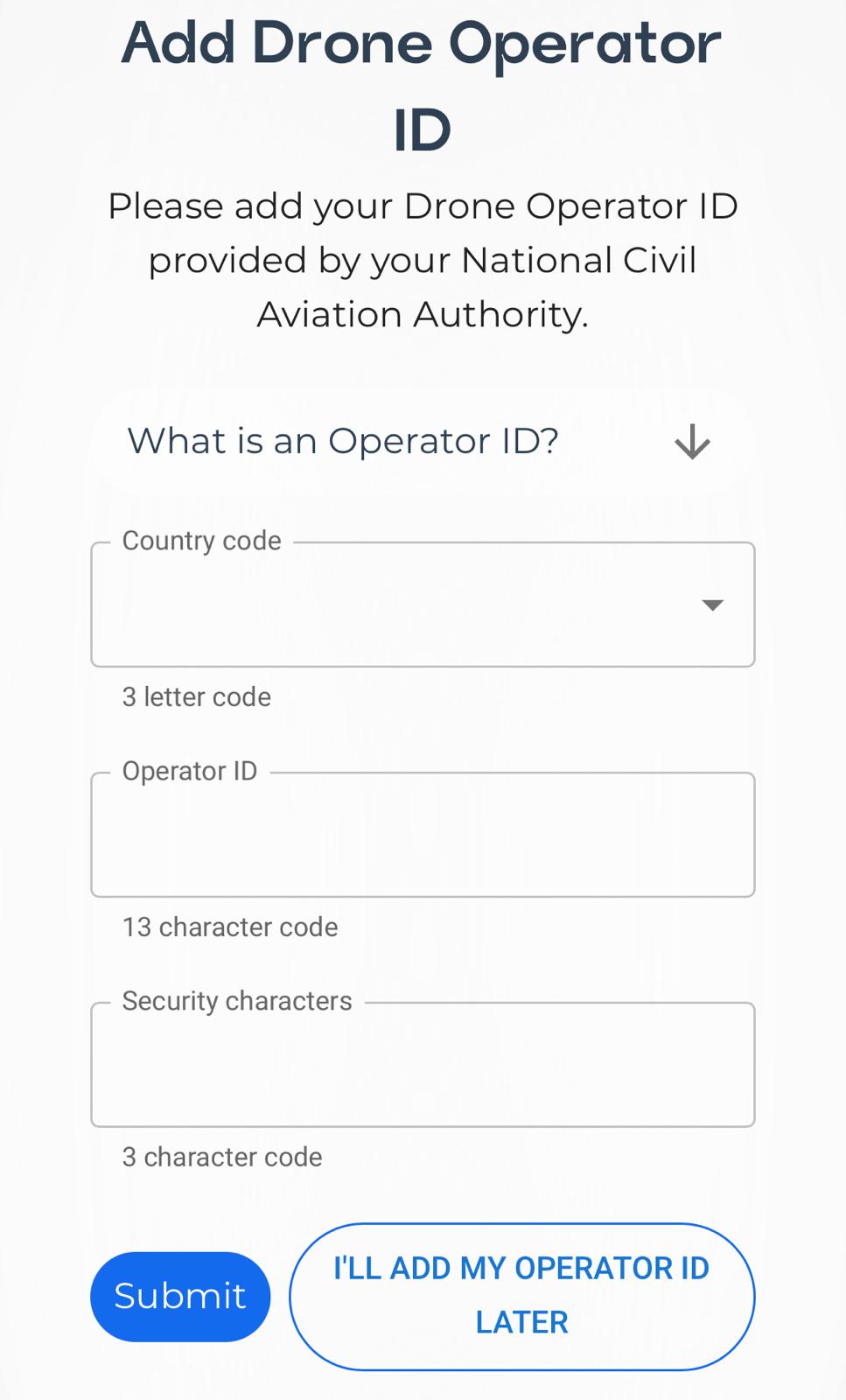
Once you fill the required fields with the correct information, you will be redirected to another page, where you will input the Operator ID, as seen in the screenshot below. You also have the option to add this information later. If you don’t know what the Operator ID is, you can find an explanation here.
What is an Operator ID?
A drone operator is any person, or organisation, who owns or rents one or more registered drones. You need to take the initiative yourself to register with your National Aviation Authority, in your country of residence or main place of business. For more information visit: EASA - Drone Operators & Pilots
You will receive a document looking similar to the one below, with the registration number (Operator ID) and security code (Security characters).
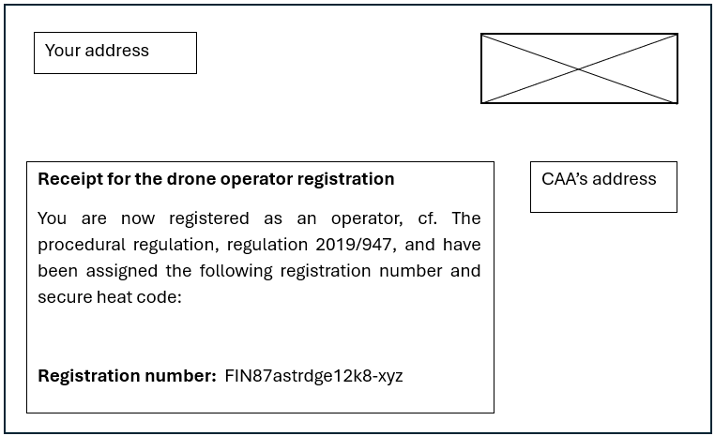
In the example, you can see that the first 3 capitalized letters are the country code, followed by 13 alphanumeric lower-case characters that make up the operator ID, a hyphen (-) and lastly another 3 lower-case alphanumeric characters which are the security characters.
- FIN: 3 upper case letters is the country code
- 87astrdge12k8: 13 alphanumeric characters (lower cases only), constitute the operator identifying number.
- xyz: 3 alphanumeric characters (lower cases only), which are the security characters
Step 3 - Adding your Remote ID Pro
This is only relevant if you don’t set up your Remote ID Pro through the QR-code. The QR-code encodes the Remote ID Pros' serial number.
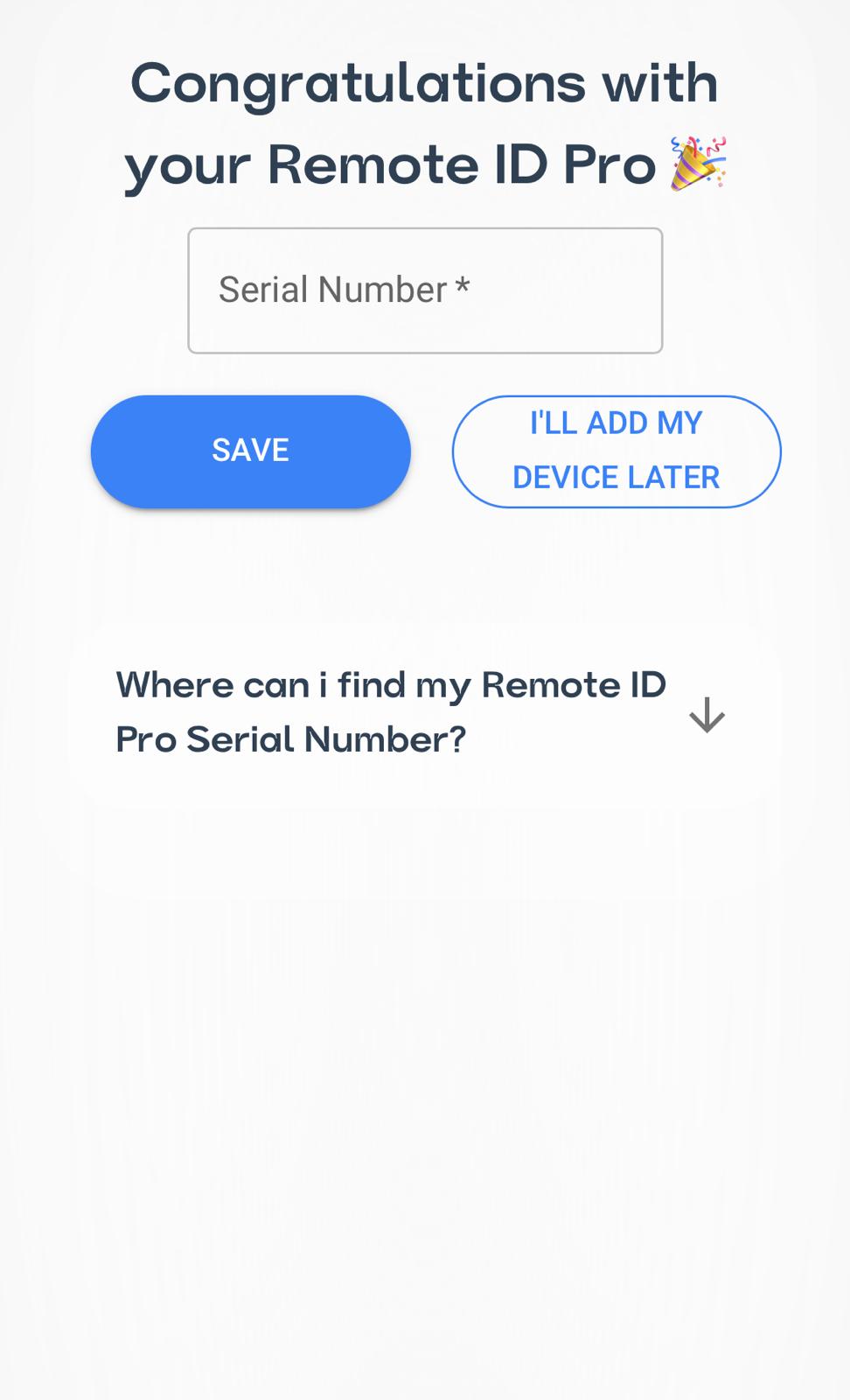
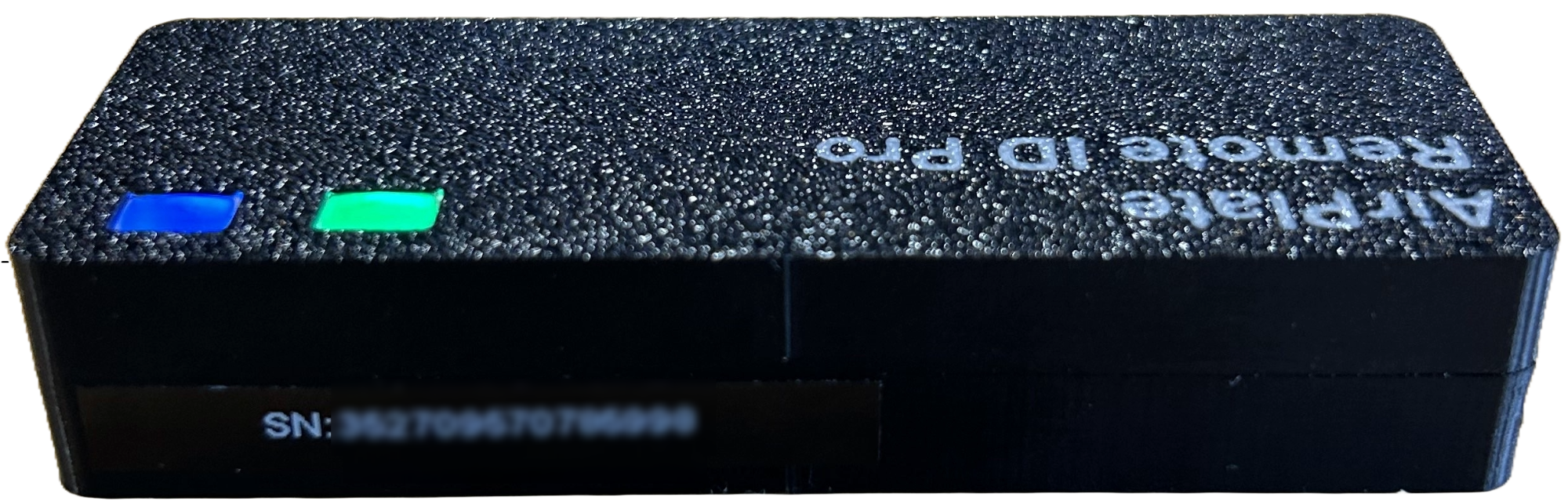
Fill the blank space with your Remote ID Pros' serial number (SN) manually. It’s placed on the side of the Remote ID Pro as shown in the image below:
Step 4 - Done!
You have successfully linked your Remote ID Pro to your account 🎉